VDO.Ninja Native App to Meshcast WHIP
Use the VDO.Ninja Android native app to publish a phone camera or USB/UVC camera into Meshcast with one WHIP connection.
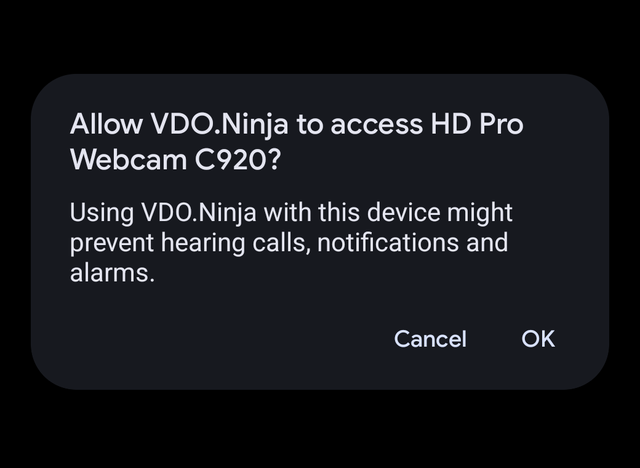
This workflow was tested with a Pixel 9a, the VDO.Ninja Android app, and a Logitech HD Pro Webcam C920 over USB. The app published audio and video to Meshcast in WHIP-only mode, and Meshcast WHEP playback showed the same USB camera feed.
Quick Navigation
Requirements
- Android phone or tablet with the VDO.Ninja native app installed.
- For USB camera capture: an Android-compatible UVC camera and a USB-C adapter or powered hub.
- A Meshcast WHIP URL. Registered users can copy it from Meshcast. Anonymous sessions can also be created for short-lived WebRTC-only streams.
- A separate Meshcast watch link, embed link, or WHEP URL for viewers.
USB camera capture is Android-only in the native app. The iOS app supports camera publishing, screen share, and external USB/USB-C audio on supported devices, but it does not expose USB camera capture.
Get the Meshcast WHIP URL
For a registered Meshcast stream, open the Dashboard or Studio and copy the WHIP publish URL for the stream. The URL has this shape:
If Meshcast gives you a server hint, keep it on the URL:
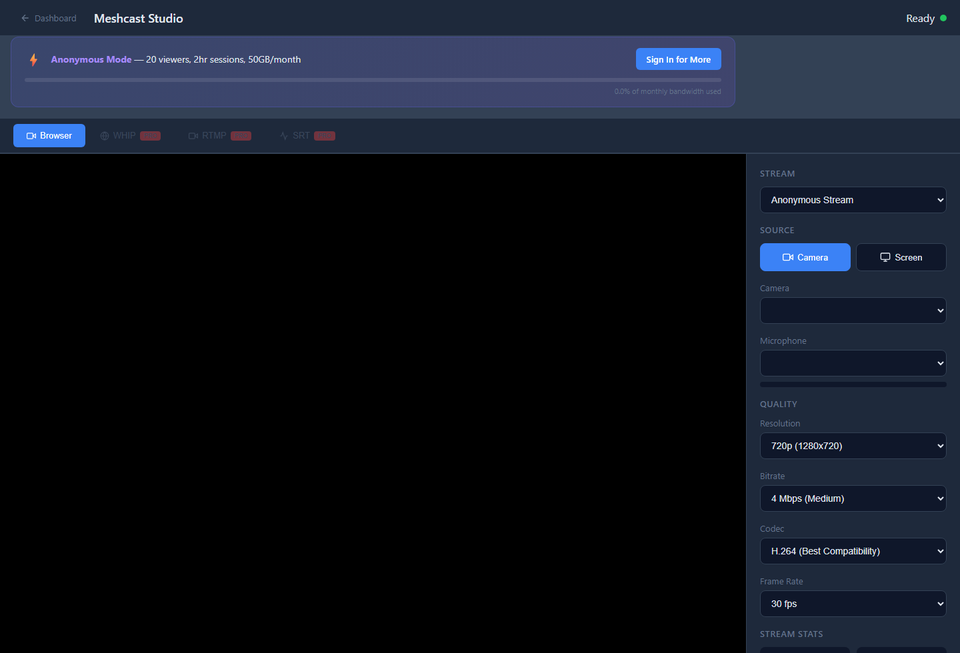
Anonymous session option
For a temporary accountless test, create an anonymous session from an allowed origin and use the returned stream_key and whip_url. Anonymous sessions are WHIP/WHEP only and expire.
Replace {stream_key} and prepend https://app.meshcast.io. Leave the VDO.Ninja app's separate Stream Key field blank when the key is already part of the WHIP URL path.
Configure the native app
- Connect the USB camera to the Android phone before opening the app. Use a powered hub if the camera draws too much power.
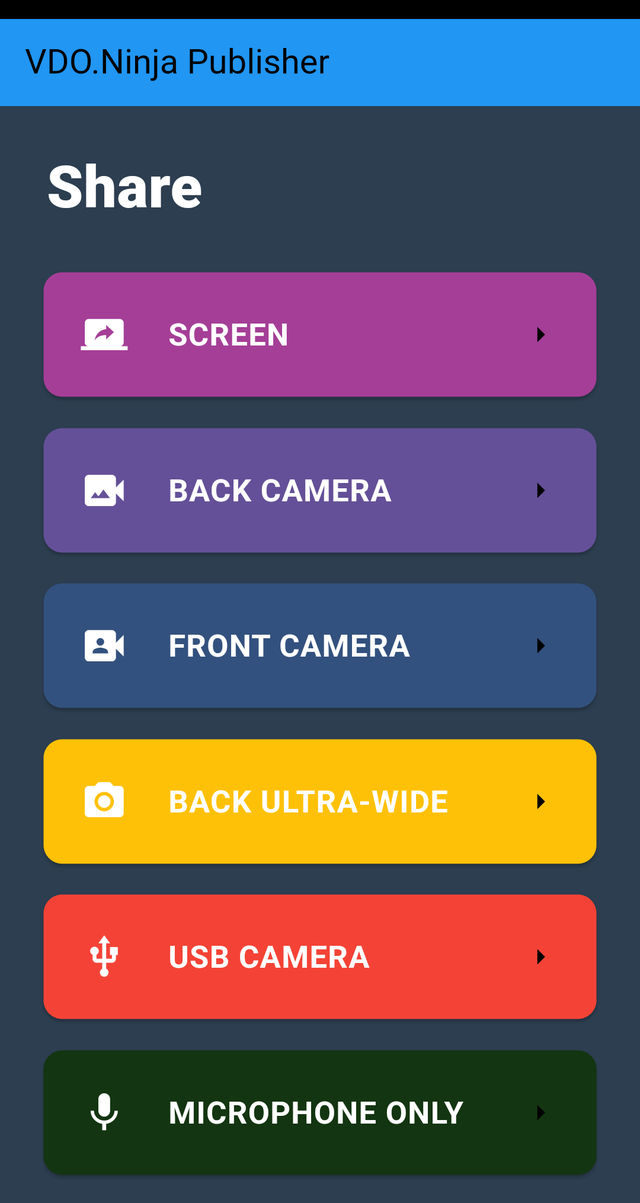
- Open the VDO.Ninja native app and select USB CAMERA. For a phone camera, select BACK CAMERA, FRONT CAMERA, or BACK ULTRA-WIDE.
- In Publishing Settings, choose the microphone. If the USB camera exposes audio, it may appear as a USB audio input.
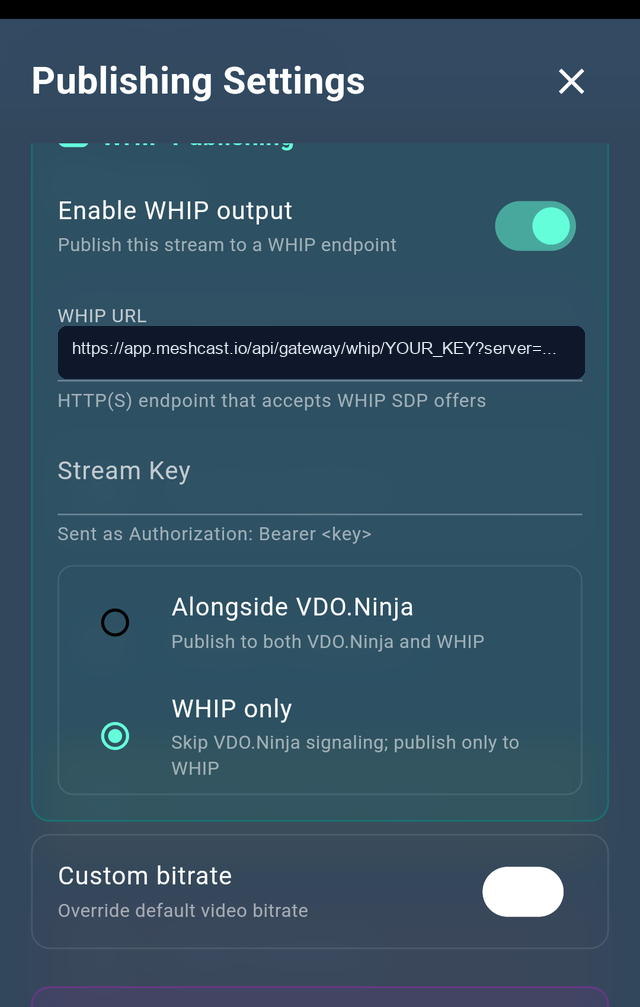
- Enable Advanced Settings if the WHIP section is not visible.
- Enable WHIP output.
- Paste the full Meshcast WHIP URL into WHIP URL.
- Leave Stream Key blank unless your WHIP service specifically expects a Bearer token instead of a key in the URL.
- Select WHIP only to avoid creating a VDO.Ninja peer-to-peer publish connection. Use Alongside VDO.Ninja only when you also want a normal VDO.Ninja push running at the same time.
- Tap Connect.
View or share the stream
Open the Meshcast watch or embed link for the same stream. Anonymous streams use the anonymous key as the view path:
Registered streams normally use the public Stream ID for watching and the private Publish Key for WHIP publishing.
Recommended event settings
Phone and camera
- Keep the phone plugged into power.
- Disable battery saver and screen timeout if possible.
- Use a powered USB hub for larger webcams or HDMI capture dongles.
- Test the exact camera, adapter, and audio device before the event.
Video and network
- Start at 720p and 30 fps for reliability.
- Use Prefer 1080p only when the phone, camera, and uplink are stable.
- Use WHIP only when Meshcast should be the only publisher connection.
- Use wired Ethernet or strong Wi-Fi for long ceremonies or events.
Troubleshooting
USB CAMERA does not appear
- Reconnect the camera and restart the app.
- Use a powered USB-C hub, especially with HDMI capture adapters.
- Confirm the camera is UVC compatible. Android USB camera support is device and firmware dependent.
- USB camera capture is not available in the iOS native app.
WHIP does not connect
- Use the full HTTPS WHIP URL, not the WHEP or watch URL.
- Leave the app's Stream Key field blank when the Meshcast key is already in the URL.
- Create a fresh anonymous session if the key expired.
- Make sure only one publisher is using the same key unless you intentionally force-replaced it.
Phone preview works but viewers see nothing
- Open the Meshcast embed/watch URL for the same stream key or public Stream ID.
- Wait a few seconds after the phone shows the live preview. WHIP setup and WHEP playback each need a WebRTC connection.
- Check that the server hint matches on both the WHIP publish URL and WHEP/watch URL when you are using one.